Airteq’s physical airflow model is computationally expensive enough that Modartt explicitly recommends a performant multicore processor for real-time rendering. Pops and crackles are therefore worth treating as timing failures first, not mysterious flaws in a preset. Airteq gives you enough performance data to narrow the cause down quickly.
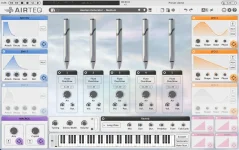
The first useful screen is Options > Perf in the standalone app, where Airteq shows an audio-load graph alongside the processor’s current frequency. Red bars mean the audio engine has crossed into overload. A clean graph while playing the same passage tells you to look elsewhere before changing the sound.
This matters because Airteq’s pipe-modeling engine calculates an evolving physical model in real time instead of streaming a fixed sample for every note. More demanding patches and dense playing can leave less processing headroom. The fix is usually about restoring that headroom without making the instrument unpleasant to play.
Audio glitches happen when processing cannot keep feeding the output buffer on time. The same mechanism is described in real-time audio processing work, where buffer underflow follows when the sound process cannot refill output samples within the available window. Increasing the buffer gives the processor more breathing room, but it also increases latency.
Airteq makes this diagnosis unusually concrete by showing CPU frequency beside audio load. Modartt specifically tells Windows users to notice a frequency that fluctuates or remains below the processor’s normal operating frequency. In that case, the documented fix is to change the computer’s power management to a High Performance setting.
Buffer size tackles the deadline from another direction. A larger buffer gives the system more time to finish each block of audio before playback reaches it, so crackles may disappear even when the synthesis workload itself has not changed. The trade-off is input-to-sound latency, which becomes obvious when you are playing Airteq live from a MIDI keyboard.
Modartt recommends an audio-buffer setting that produces less than 8 ms of latency for keyboard playing in the standalone version. Treat that figure as a responsiveness target, not a rule that overrides stability. A session that crackles at a tiny buffer is worse to play than one with slightly more latency and clean output.
Windows users also need an ASIO path for low-latency standalone use. Airteq’s manual calls for an ASIO-compatible sound card and driver, with a generic ASIO option available when hardware does not ship with its own driver. Before blaming the synth, confirm Airteq is actually using the intended audio device and driver.
Watch the frequency while reproducing the crackle instead of checking it after the fact. Red overload bars paired with a frequency that stays unexpectedly low point toward power management before they point toward a bad preset. Changing Windows to the documented High Performance behavior removes one variable from the test.
There is also value in comparing the standalone version with the plug-in under the same playing conditions. Clean standalone playback with trouble only inside a large DAW session points toward the wider session load, host configuration, or shared audio resources rather than Airteq alone. Trouble in both places makes the driver, sample rate, buffer, CPU frequency, and machine-level load more useful places to investigate.
Avoid changing five settings at once. Reproduce the glitch, watch the graph, change one variable, and play the same passage again. Airteq already tells you whether the engine is overloaded, so the fastest fix usually comes from following the evidence instead of randomly stripping complexity from the patch.
The first useful screen is Options > Perf in the standalone app, where Airteq shows an audio-load graph alongside the processor’s current frequency. Red bars mean the audio engine has crossed into overload. A clean graph while playing the same passage tells you to look elsewhere before changing the sound.
This matters because Airteq’s pipe-modeling engine calculates an evolving physical model in real time instead of streaming a fixed sample for every note. More demanding patches and dense playing can leave less processing headroom. The fix is usually about restoring that headroom without making the instrument unpleasant to play.
Airteq shows whether the CPU is actually missing deadlines
Start with a passage that reliably produces the problem and watch the audio-load graph while it happens. If the crackle lines up with red overload bars, you have evidence that the audio engine is missing its real-time budget. If the graph stays comfortable, the fault may sit in the driver, host, routing, or another part of the system.Audio glitches happen when processing cannot keep feeding the output buffer on time. The same mechanism is described in real-time audio processing work, where buffer underflow follows when the sound process cannot refill output samples within the available window. Increasing the buffer gives the processor more breathing room, but it also increases latency.
Airteq makes this diagnosis unusually concrete by showing CPU frequency beside audio load. Modartt specifically tells Windows users to notice a frequency that fluctuates or remains below the processor’s normal operating frequency. In that case, the documented fix is to change the computer’s power management to a High Performance setting.
Sample rate and buffer size solve different parts of the problem
Lowering the sample rate is Modartt’s direct recommendation when Airteq’s performance graph shows trouble. A lower rate means fewer audio samples must be calculated every second, which reduces the real-time workload. It is the cleaner first move when the processor simply cannot keep up with the current configuration.Buffer size tackles the deadline from another direction. A larger buffer gives the system more time to finish each block of audio before playback reaches it, so crackles may disappear even when the synthesis workload itself has not changed. The trade-off is input-to-sound latency, which becomes obvious when you are playing Airteq live from a MIDI keyboard.
Modartt recommends an audio-buffer setting that produces less than 8 ms of latency for keyboard playing in the standalone version. Treat that figure as a responsiveness target, not a rule that overrides stability. A session that crackles at a tiny buffer is worse to play than one with slightly more latency and clean output.
Windows users also need an ASIO path for low-latency standalone use. Airteq’s manual calls for an ASIO-compatible sound card and driver, with a generic ASIO option available when hardware does not ship with its own driver. Before blaming the synth, confirm Airteq is actually using the intended audio device and driver.
Windows power behavior can masquerade as an Airteq problem
A processor does not necessarily run at one fixed clock speed just because its advertised specification looks fast enough. Power management can reduce or vary CPU frequency, which is useful for energy saving but awkward when a real-time instrument suddenly needs a block of calculations finished immediately. Airteq exposes the live frequency precisely so you can spot this condition during playback.Watch the frequency while reproducing the crackle instead of checking it after the fact. Red overload bars paired with a frequency that stays unexpectedly low point toward power management before they point toward a bad preset. Changing Windows to the documented High Performance behavior removes one variable from the test.
There is also value in comparing the standalone version with the plug-in under the same playing conditions. Clean standalone playback with trouble only inside a large DAW session points toward the wider session load, host configuration, or shared audio resources rather than Airteq alone. Trouble in both places makes the driver, sample rate, buffer, CPU frequency, and machine-level load more useful places to investigate.
Avoid changing five settings at once. Reproduce the glitch, watch the graph, change one variable, and play the same passage again. Airteq already tells you whether the engine is overloaded, so the fastest fix usually comes from following the evidence instead of randomly stripping complexity from the patch.