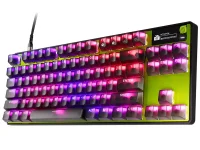
The Apex Pro TKL Gen 3 lets you adjust 61 OmniPoint keys from 0.1mm to 4.0mm through SteelSeries GG. The useful part is not pushing every slider to its minimum. A good SteelSeries Apex Pro TKL Gen 3 setup separates movement keys, deliberate ability keys, typing keys, and features that change how overlapping inputs are handled.
The Cyber and Steel Apex Pro TKL Gen 3 editions use OmniPoint 3.0 magnetic switches on the adjustable key group, while arrows, function keys, and several navigation keys use conventional red switches. So a SteelSeries Apex Pro TKL Gen 3 Hall effect setup is not literally adjustable on every physical key.
If you arrived looking for SteelSeries Apex Pro TKL Gen 3 drivers or a software download, GG is the normal configuration route for Engine, Prism lighting, and QuickSet profiles. Keep one plain desktop profile before making game-specific changes. It gives you a known baseline when an aggressive movement setup starts causing accidental inputs during normal typing.
For SteelSeries Apex Pro TKL Gen 3 actuation, start with a small group instead of selecting the whole board. Around 1.0mm is a reasonable first test for WASD if you want a light movement feel, while keys you hit accidentally can sit deeper. Do not assume 0.1mm is automatically faster in a useful way because fine software adjustment is not the same as physical accuracy.
A shallow actuation point can make feel immediate, but it can also turn resting finger pressure into unwanted input. Protection Mode is useful here because it temporarily reduces the sensitivity of keys surrounding the one you intentionally press. It is more practical than making the entire SteelSeries Apex Pro TKL Gen 3 configuration extremely sensitive and then fighting the mistakes.
QuickSet is the easy route if you want per-game profiles without rebuilding everything by hand. GG can auto-load supported presets when a game launches, and you can still modify the actuation, Rapid Trigger, Rapid Tap, and Protection Mode behavior afterward. Changing the SteelSeries Apex Pro TKL Gen 3 color is handled through Prism rather than the actuation page.
Rapid Tap decides which of two opposing inputs wins when both are held, favoring the newer press. SteelSeries key plus Q toggles it after the required firmware support is present, and the OLED can show its status. A SteelSeries Apex Pro TKL Gen 3 Rapid Tap setup should therefore be treated as a separate decision from Rapid Trigger, not as another sensitivity level.
For SteelSeries Apex Pro TKL Gen 3 CS2 settings, keep Rapid Tap off on Valve official servers. Valve's published input policy tells players to disable keyboard input-automation features such as Snap Tap before joining those matches. Other games and tournament organizers can use different rules, so a per-game QuickSet profile is cleaner than leaving last-input priority enabled globally.
Use the OLED screen for quick checks, but use GG when you are building a repeatable profile. The SteelSeries Apex Pro TKL Gen 3 OLED screen can show actuation and feature status, which is handy when you switch between a typing profile and a game profile without guessing what is active.
The best test is boring and effective. Play normally for a few rounds, note accidental presses or sluggish releases, then change one setting at a time. Keep actuation, Rapid Trigger sensitivity, Protection Mode, and Rapid Tap as separate variables. You will learn more from one controlled adjustment than from copying an ultra-low preset built around somebody else's fingers.
The Cyber and Steel Apex Pro TKL Gen 3 editions use OmniPoint 3.0 magnetic switches on the adjustable key group, while arrows, function keys, and several navigation keys use conventional red switches. So a SteelSeries Apex Pro TKL Gen 3 Hall effect setup is not literally adjustable on every physical key.
Start with firmware, GG, and actuation
Connect the keyboard, open SteelSeries GG, and let Engine recognize it before changing anything. If GG offers a SteelSeries Apex Pro TKL Gen 3 firmware update, install it first so you are tuning the behavior you will actually keep. Independent testing was updated after newer firmware improved actuation setpoint accuracy, which gives you another reason to finish updates before judging a sensitivity setting.If you arrived looking for SteelSeries Apex Pro TKL Gen 3 drivers or a software download, GG is the normal configuration route for Engine, Prism lighting, and QuickSet profiles. Keep one plain desktop profile before making game-specific changes. It gives you a known baseline when an aggressive movement setup starts causing accidental inputs during normal typing.
For SteelSeries Apex Pro TKL Gen 3 actuation, start with a small group instead of selecting the whole board. Around 1.0mm is a reasonable first test for WASD if you want a light movement feel, while keys you hit accidentally can sit deeper. Do not assume 0.1mm is automatically faster in a useful way because fine software adjustment is not the same as physical accuracy.
A shallow actuation point can make feel immediate, but it can also turn resting finger pressure into unwanted input. Protection Mode is useful here because it temporarily reduces the sensitivity of keys surrounding the one you intentionally press. It is more practical than making the entire SteelSeries Apex Pro TKL Gen 3 configuration extremely sensitive and then fighting the mistakes.
QuickSet is the easy route if you want per-game profiles without rebuilding everything by hand. GG can auto-load supported presets when a game launches, and you can still modify the actuation, Rapid Trigger, Rapid Tap, and Protection Mode behavior afterward. Changing the SteelSeries Apex Pro TKL Gen 3 color is handled through Prism rather than the actuation page.
Separate Rapid Trigger from Rapid Tap
Rapid Trigger changes when one key resets as your finger moves upward, so it is a strong fit for movement keys where repeated presses and releases matter. You can toggle it with SteelSeries key plus T, or use the TKL OLED controls. The important distinction is that Rapid Trigger and last-input-priority tap behavior solve different problems.Rapid Tap decides which of two opposing inputs wins when both are held, favoring the newer press. SteelSeries key plus Q toggles it after the required firmware support is present, and the OLED can show its status. A SteelSeries Apex Pro TKL Gen 3 Rapid Tap setup should therefore be treated as a separate decision from Rapid Trigger, not as another sensitivity level.
For SteelSeries Apex Pro TKL Gen 3 CS2 settings, keep Rapid Tap off on Valve official servers. Valve's published input policy tells players to disable keyboard input-automation features such as Snap Tap before joining those matches. Other games and tournament organizers can use different rules, so a per-game QuickSet profile is cleaner than leaving last-input priority enabled globally.
Tune profiles instead of chasing the lowest number
The SteelSeries Apex Pro TKL Gen 3 polling rate is 1,000Hz, which gives the USB side a reporting opportunity every millisecond. Do not read that as the complete SteelSeries Apex Pro TKL Gen 3 response time because sensing, firmware processing, game input, frame timing, and display output sit elsewhere in the chain. Polling interval is not total keyboard latency.Use the OLED screen for quick checks, but use GG when you are building a repeatable profile. The SteelSeries Apex Pro TKL Gen 3 OLED screen can show actuation and feature status, which is handy when you switch between a typing profile and a game profile without guessing what is active.
The best test is boring and effective. Play normally for a few rounds, note accidental presses or sluggish releases, then change one setting at a time. Keep actuation, Rapid Trigger sensitivity, Protection Mode, and Rapid Tap as separate variables. You will learn more from one controlled adjustment than from copying an ultra-low preset built around somebody else's fingers.