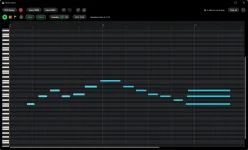
YBK Audio’s Instrument Player is a 64-bit Windows host that scans VST3 instruments in a separate process.
A missing synth therefore needs a narrower diagnosis than reinstalling everything and hoping Windows gets bored first. Instrument Player has its own instrument browser, its own scanner, and a built-in Starter Synth, so you can work out whether the problem is discovery, plug-in type, or the basic audio path without touching ten settings at once.
Start by confirming what you are actually trying to load. The standalone VST3 instrument player for Windows is built around VST3 instruments, while VST3 effects are chained after an instrument. An effect plug-in missing from the instrument list is not the same problem as a synth that should be there and is not.
This distinction kills a lot of pointless troubleshooting. If the software you installed is a compressor, reverb, limiter, analyzer, or other effect, do not treat its absence from the instrument list as proof the scan failed. Check its actual format and role first.
A synth, sampler, drum instrument, or other VST3 sound generator is different. If the vendor installed a VST3 instrument and Instrument Player cannot find it, the next useful check is the file itself, not the audio driver. Windows VST3 installations commonly live in the Program Files\Common Files\VST3 folder, while the VST3 specification also defines a user-level location under %LOCALAPPDATA%\Programs\Common\VST3.
Seeing a product name in the Windows Start menu proves very little here. Some products install a standalone executable alongside a separate plug-in package, and one can work while the other is missing. Open the VST3 location and confirm the actual .vst3 package exists before repeatedly rescanning an empty destination.
A silent Starter Synth points somewhere else. Check the audio device, volume, MIDI input, and Windows audio mode before blaming the scanner, with the Instrument Player latency and Windows audio mode setup covering the shared, exclusive, and DirectSound side in more detail.
Once Starter Synth works, return to discovery. Use the plug-in vendor’s current 64-bit VST3 installer when it offers several formats, then reopen or rescan Instrument Player after installation. Installing VST2, AAX, Audio Unit, or only a standalone version will not magically create the VST3 instrument package the host needs.
The separate scanner matters here too. YBK runs scanning outside the main application so a badly behaved plug-in does not have to take Instrument Player down with it. The broader principle is well established in software fault isolation research, where untrusted or failure-prone modules are kept from damaging the larger process around them.
In practical terms, Instrument Player staying open does not prove every plug-in scanned successfully. A troublesome VST3 can be the thing failing while the host survives, which is precisely why “the app did not crash” is a weak test for whether discovery worked.
If the package is present but still absent after a fresh scan, check whether another VST3 host on the same machine can see and load it. A plug-in missing everywhere points back toward the installation or the plug-in itself, while one that works in another current VST3 host gives you a much tighter compatibility problem to investigate.
Do not start by deleting every plug-in cache, moving your entire VST folder, or reinstalling Windows audio drivers. Those moves change several variables at once. Confirm the plug-in is an instrument, confirm the 64-bit VST3 package exists, prove Starter Synth works, rescan, and only then move into compatibility or reinstall territory.
A missing synth therefore needs a narrower diagnosis than reinstalling everything and hoping Windows gets bored first. Instrument Player has its own instrument browser, its own scanner, and a built-in Starter Synth, so you can work out whether the problem is discovery, plug-in type, or the basic audio path without touching ten settings at once.
Start by confirming what you are actually trying to load. The standalone VST3 instrument player for Windows is built around VST3 instruments, while VST3 effects are chained after an instrument. An effect plug-in missing from the instrument list is not the same problem as a synth that should be there and is not.
The instrument browser only solves one kind of plug-in job
Instrument Player scans the VST3 instruments installed on the PC into a searchable list with favorites. It can also host VST3 effects, but those belong after the loaded instrument in the effects chain rather than serving as the sound source you select from the instrument browser.This distinction kills a lot of pointless troubleshooting. If the software you installed is a compressor, reverb, limiter, analyzer, or other effect, do not treat its absence from the instrument list as proof the scan failed. Check its actual format and role first.
A synth, sampler, drum instrument, or other VST3 sound generator is different. If the vendor installed a VST3 instrument and Instrument Player cannot find it, the next useful check is the file itself, not the audio driver. Windows VST3 installations commonly live in the Program Files\Common Files\VST3 folder, while the VST3 specification also defines a user-level location under %LOCALAPPDATA%\Programs\Common\VST3.
Seeing a product name in the Windows Start menu proves very little here. Some products install a standalone executable alongside a separate plug-in package, and one can work while the other is missing. Open the VST3 location and confirm the actual .vst3 package exists before repeatedly rescanning an empty destination.
The Starter Synth separates scanning trouble from audio trouble
Instrument Player includes Starter Synth specifically so the app has something playable before you install any external plug-in. Use it as a control. If Starter Synth responds to your controller and produces clean audio, your missing third-party instrument is unlikely to be fixed by randomly changing MIDI inputs or Windows output modes.A silent Starter Synth points somewhere else. Check the audio device, volume, MIDI input, and Windows audio mode before blaming the scanner, with the Instrument Player latency and Windows audio mode setup covering the shared, exclusive, and DirectSound side in more detail.
Once Starter Synth works, return to discovery. Use the plug-in vendor’s current 64-bit VST3 installer when it offers several formats, then reopen or rescan Instrument Player after installation. Installing VST2, AAX, Audio Unit, or only a standalone version will not magically create the VST3 instrument package the host needs.
The separate scanner matters here too. YBK runs scanning outside the main application so a badly behaved plug-in does not have to take Instrument Player down with it. The broader principle is well established in software fault isolation research, where untrusted or failure-prone modules are kept from damaging the larger process around them.
In practical terms, Instrument Player staying open does not prove every plug-in scanned successfully. A troublesome VST3 can be the thing failing while the host survives, which is precisely why “the app did not crash” is a weak test for whether discovery worked.
Reinstall only after the format and location checks fail
Reinstalling makes sense when the expected .vst3 package is missing, damaged, or clearly the wrong build. Use the developer’s installer rather than copying random DLL files around, select the 64-bit VST3 option when the installer exposes format choices, and let it place the plug-in in a standard VST3 location.If the package is present but still absent after a fresh scan, check whether another VST3 host on the same machine can see and load it. A plug-in missing everywhere points back toward the installation or the plug-in itself, while one that works in another current VST3 host gives you a much tighter compatibility problem to investigate.
Do not start by deleting every plug-in cache, moving your entire VST folder, or reinstalling Windows audio drivers. Those moves change several variables at once. Confirm the plug-in is an instrument, confirm the 64-bit VST3 package exists, prove Starter Synth works, rescan, and only then move into compatibility or reinstall territory.