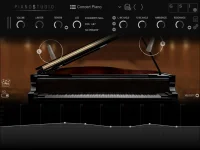
GSi Piano Studio 1.1.0 adds a global Polyphony option with three choices, giving players a direct way to trade voice capacity against processing demand. GSi still describes the instrument as capable of full polyphony, while its current iOS listing warns that older devices may struggle when that setting is pushed fully.
Polyphony sounds simple until you use the sustain pedal. Ten fingers can release ten keys while their notes keep ringing, then play ten more, and a modeled piano may also be calculating decay and resonance around those events. Counting the keys currently held tells you very little about the busiest moment.
Start with GSi Piano Studio's three polyphony choices at the highest setting your device handles cleanly. Do not lower it simply because a smaller number feels safer. A useful setting is the one that survives the music you actually play without forcing the computer or mobile device into audible trouble.
Research on acoustic piano behavior helps explain why this matters. Sustain-pedal resonance measurements found increased decay time for partials in the middle register and stronger sympathetic vibration when the string register was left free to resonate. A modeled instrument has to create the audible consequences of those interactions somehow, so pedal-heavy playing is a more revealing performance test than hammering one giant chord.
Use one MIDI passage for every polyphony setting. Record sixty to ninety seconds containing dense pedal work, quiet held chords, repeated notes, fast runs, and a few moments where the pedal clears completely. Replaying the same data removes performance variation and makes subtle failures easier to spot.
Listen for missing tails, abrupt changes in sustained harmony, clicks, crackles, or short interruptions. Do not assume every problem means the polyphony limit itself has been reached. Audio-buffer settings, other plugins, background tasks, thermal throttling on mobile hardware, or an overloaded host can create different problems during the same demanding passage.
Mobile devices deserve a longer test than one clean minute. Play until the device has been working hard for a while, particularly inside an AUv3 host with effects and other instruments running. A setting that behaves perfectly in the standalone app may become less comfortable once the same processor is also carrying the rest of a session.
Watch the audio buffer before blaming the piano. A buffer set aggressively low reduces latency but leaves less time for the processor to finish each block of audio. If the highest polyphony setting crackles, one sensible comparison is to raise the buffer slightly and replay the identical MIDI passage before reducing voice capacity.
Keep output effects unchanged during this test. Reverb, delay, ambience, EQ, and limiting can change what you notice in a decaying chord, while other hosted effects also consume processing power. You want one variable moving at a time, or the result becomes guesswork.
Choose the lower setting when it removes real problems without making sustained passages audibly thinner. Test pedal-down chords across several registers, rapid repeated figures, and the most demanding piece in your set. If you cannot hear missing musical information, the smaller setting has bought useful processing headroom.
Half-pedal and re-pedaling deserve their own pass because Piano Studio supports both. Continuous pedal positions can leave notes behaving differently from a simple on-off sustain test, while re-pedaling may catch decays you thought were finished. Use the actual pedal and controller you perform with rather than judging the setting from mouse clicks.
Save separate programs or host setups for live playing and heavier studio work if your system benefits from different choices. Keep the live version conservative, then use the higher setting for exposed solo parts or rendering when the machine has room. Polyphony is not a badge of quality here. It is a resource setting tied to the way your music leaves notes ringing.
Polyphony sounds simple until you use the sustain pedal. Ten fingers can release ten keys while their notes keep ringing, then play ten more, and a modeled piano may also be calculating decay and resonance around those events. Counting the keys currently held tells you very little about the busiest moment.
Start with GSi Piano Studio's three polyphony choices at the highest setting your device handles cleanly. Do not lower it simply because a smaller number feels safer. A useful setting is the one that survives the music you actually play without forcing the computer or mobile device into audible trouble.
Sustain creates the real polyphony stress test
A dry staccato passage is a poor test because released notes disappear from the workload quickly. Hold the damper pedal through broad chords, arpeggios, repeated bass notes, and busy right-hand figures instead. Keep playing long enough for old decays to overlap new attacks, especially through the middle of the keyboard.Research on acoustic piano behavior helps explain why this matters. Sustain-pedal resonance measurements found increased decay time for partials in the middle register and stronger sympathetic vibration when the string register was left free to resonate. A modeled instrument has to create the audible consequences of those interactions somehow, so pedal-heavy playing is a more revealing performance test than hammering one giant chord.
Use one MIDI passage for every polyphony setting. Record sixty to ninety seconds containing dense pedal work, quiet held chords, repeated notes, fast runs, and a few moments where the pedal clears completely. Replaying the same data removes performance variation and makes subtle failures easier to spot.
Listen for missing tails, abrupt changes in sustained harmony, clicks, crackles, or short interruptions. Do not assume every problem means the polyphony limit itself has been reached. Audio-buffer settings, other plugins, background tasks, thermal throttling on mobile hardware, or an overloaded host can create different problems during the same demanding passage.
Full polyphony should earn its CPU cost
The highest setting makes sense when the system handles it comfortably. GSi specifically warns that older iPads and iPhones may not have enough CPU power for good performance at full polyphony, while recommending newer hardware for the mobile app. A desktop with generous headroom may never make the compromise noticeable.Mobile devices deserve a longer test than one clean minute. Play until the device has been working hard for a while, particularly inside an AUv3 host with effects and other instruments running. A setting that behaves perfectly in the standalone app may become less comfortable once the same processor is also carrying the rest of a session.
Watch the audio buffer before blaming the piano. A buffer set aggressively low reduces latency but leaves less time for the processor to finish each block of audio. If the highest polyphony setting crackles, one sensible comparison is to raise the buffer slightly and replay the identical MIDI passage before reducing voice capacity.
Keep output effects unchanged during this test. Reverb, delay, ambience, EQ, and limiting can change what you notice in a decaying chord, while other hosted effects also consume processing power. You want one variable moving at a time, or the result becomes guesswork.
Lower polyphony can be the better live setting
Live playing changes the priorities. A studio render can tolerate a larger buffer or a heavier configuration because latency matters less during offline work, but a performance rig has to respond immediately and remain stable for the whole set. Extra theoretical capacity is worthless if the audio path becomes fragile.Choose the lower setting when it removes real problems without making sustained passages audibly thinner. Test pedal-down chords across several registers, rapid repeated figures, and the most demanding piece in your set. If you cannot hear missing musical information, the smaller setting has bought useful processing headroom.
Half-pedal and re-pedaling deserve their own pass because Piano Studio supports both. Continuous pedal positions can leave notes behaving differently from a simple on-off sustain test, while re-pedaling may catch decays you thought were finished. Use the actual pedal and controller you perform with rather than judging the setting from mouse clicks.
Save separate programs or host setups for live playing and heavier studio work if your system benefits from different choices. Keep the live version conservative, then use the higher setting for exposed solo parts or rendering when the machine has room. Polyphony is not a badge of quality here. It is a resource setting tied to the way your music leaves notes ringing.