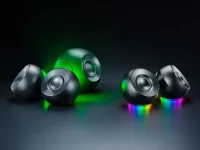
Razer Mako X can carry digital audio and up to 15W of power from a PC through its primary USB-C connection. The basic hookup is simple, but the second USB-C port, Windows routing, Bluetooth, and virtual surround can make troubleshooting look messier.
Start with the connection you want to use. USB-C is the cleanest PC setup because one cable can carry audio and basic power, while Bluetooth 5.3 and the 3.5 mm input give you alternatives. The Razer Mako and Mako X speaker specifications are worth keeping separate because Mako X is the compact 2.0 model without the dedicated subwoofer.
A normal PC connection can provide audio and up to 15W through the primary cable. Full output needs a 45W-or-higher Power Delivery adapter on the secondary port, and USB PD negotiates available power between source and device rather than treating every USB-C supply as identical. The mechanism is described in this USB Type-C power-contract negotiation patent.
This distinction matters when Razer speakers are not connecting to a PC even though the lights come on. Power proves very little about the data path. A cable can charge a device without carrying the audio connection you expected, so try the included cable or another known data-capable cable directly into the computer before adding a dock or hub.
USB audio also changes which device Windows is sending sound to. A similar setup with USB-C audio directly from a computer shows the same routing idea, where connected hardware becomes an audio output instead of merely receiving power.
A Razer speaker not detected at the operating-system level points you back toward the USB connection, cable, port, or device state. A Razer sound problem with visible audio activity is different because Windows may already see the hardware while another output remains selected. The Windows default output device can quietly decide where ordinary desktop audio goes.
Apps can complicate things after the system output works. Windows shared audio allows several applications to use the same device, while exclusive access can temporarily take ownership of an endpoint and silence other apps. The practical difference between Windows shared and exclusive audio is useful when one game works but a browser or another application suddenly goes quiet.
Bluetooth deserves its own test. If Razer speakers are not connecting wirelessly, remove the existing pairing, pair again, then confirm Windows switched playback to the Bluetooth speaker instead of leaving sound on the monitor, headset, or previous USB endpoint.
The same split helps when Razer surround sound is not showing up. Confirm the physical speaker first, then deal with the virtual device, activation, or surround software. A Razer 7.1 setup not working does not automatically mean the Mako X itself has disappeared from Windows.
Older Razer models can produce similar symptoms for different reasons. If Razer Nommo speakers are not showing up, start with their actual connection method and Windows output selection rather than copying the Mako X power setup. Razer Nommo Chroma speakers not working should be approached the same way, with hardware detection separated from lighting or software configuration.
A Razer Leviathan speaker not working also needs model-specific checks because the Leviathan family is a soundbar rather than a pair of Mako X desktop speakers. A Razer speaker bar not working can still be narrowed down using the same order: physical input first, Windows output second, then any Razer software layered on top.
Once the PC sees the correct endpoint and ordinary stereo audio plays, the problem stops being one giant “Razer speakers not working” mystery. You can tell whether you are dealing with power, USB data, Windows routing, Bluetooth pairing, or virtual surround, which is usually enough to keep one small fault from turning into a full reinstall.
Start with the connection you want to use. USB-C is the cleanest PC setup because one cable can carry audio and basic power, while Bluetooth 5.3 and the 3.5 mm input give you alternatives. The Razer Mako and Mako X speaker specifications are worth keeping separate because Mako X is the compact 2.0 model without the dedicated subwoofer.
USB-C needs the right port and enough power
On the Razer Mako X, the main USB-C audio port is the one that belongs on the PC. The separate USB-C PD connection is there for additional power, not as a second digital audio input, so swapping those two jobs can leave you staring at good cables while the setup goes nowhere.A normal PC connection can provide audio and up to 15W through the primary cable. Full output needs a 45W-or-higher Power Delivery adapter on the secondary port, and USB PD negotiates available power between source and device rather than treating every USB-C supply as identical. The mechanism is described in this USB Type-C power-contract negotiation patent.
This distinction matters when Razer speakers are not connecting to a PC even though the lights come on. Power proves very little about the data path. A cable can charge a device without carrying the audio connection you expected, so try the included cable or another known data-capable cable directly into the computer before adding a dock or hub.
USB audio also changes which device Windows is sending sound to. A similar setup with USB-C audio directly from a computer shows the same routing idea, where connected hardware becomes an audio output instead of merely receiving power.
Windows should see the speaker before software matters
If your Razer speakers are not showing up, open Windows sound settings and check the available output devices before reinstalling anything. Select the Mako X when it appears, play ordinary system audio, and keep the test boring until you know Windows can send a clean stereo signal to it.A Razer speaker not detected at the operating-system level points you back toward the USB connection, cable, port, or device state. A Razer sound problem with visible audio activity is different because Windows may already see the hardware while another output remains selected. The Windows default output device can quietly decide where ordinary desktop audio goes.
Apps can complicate things after the system output works. Windows shared audio allows several applications to use the same device, while exclusive access can temporarily take ownership of an endpoint and silence other apps. The practical difference between Windows shared and exclusive audio is useful when one game works but a browser or another application suddenly goes quiet.
Bluetooth deserves its own test. If Razer speakers are not connecting wirelessly, remove the existing pairing, pair again, then confirm Windows switched playback to the Bluetooth speaker instead of leaving sound on the monitor, headset, or previous USB endpoint.
Surround problems are separate from basic speaker detection
Virtual 7.1 should be treated as a software layer on top of a working speaker connection. A Razer 7.1 surround sound problem on Windows 11 is easier to diagnose after normal stereo playback already works. Fixing surround software while the PC cannot produce basic sound wastes time.The same split helps when Razer surround sound is not showing up. Confirm the physical speaker first, then deal with the virtual device, activation, or surround software. A Razer 7.1 setup not working does not automatically mean the Mako X itself has disappeared from Windows.
Older Razer models can produce similar symptoms for different reasons. If Razer Nommo speakers are not showing up, start with their actual connection method and Windows output selection rather than copying the Mako X power setup. Razer Nommo Chroma speakers not working should be approached the same way, with hardware detection separated from lighting or software configuration.
A Razer Leviathan speaker not working also needs model-specific checks because the Leviathan family is a soundbar rather than a pair of Mako X desktop speakers. A Razer speaker bar not working can still be narrowed down using the same order: physical input first, Windows output second, then any Razer software layered on top.
Once the PC sees the correct endpoint and ordinary stereo audio plays, the problem stops being one giant “Razer speakers not working” mystery. You can tell whether you are dealing with power, USB data, Windows routing, Bluetooth pairing, or virtual surround, which is usually enough to keep one small fault from turning into a full reinstall.