

The purpose of creating a buss or a group channel is to make use of a single fader channel that has other multiple mixer tracks routed to it. In this FL Studio tutorial, I will show you how to navigate this music production technique.
Step 1: Let's rename and color-code FL Studio's mixer tracks that we wish to send to a bus or a group channel.
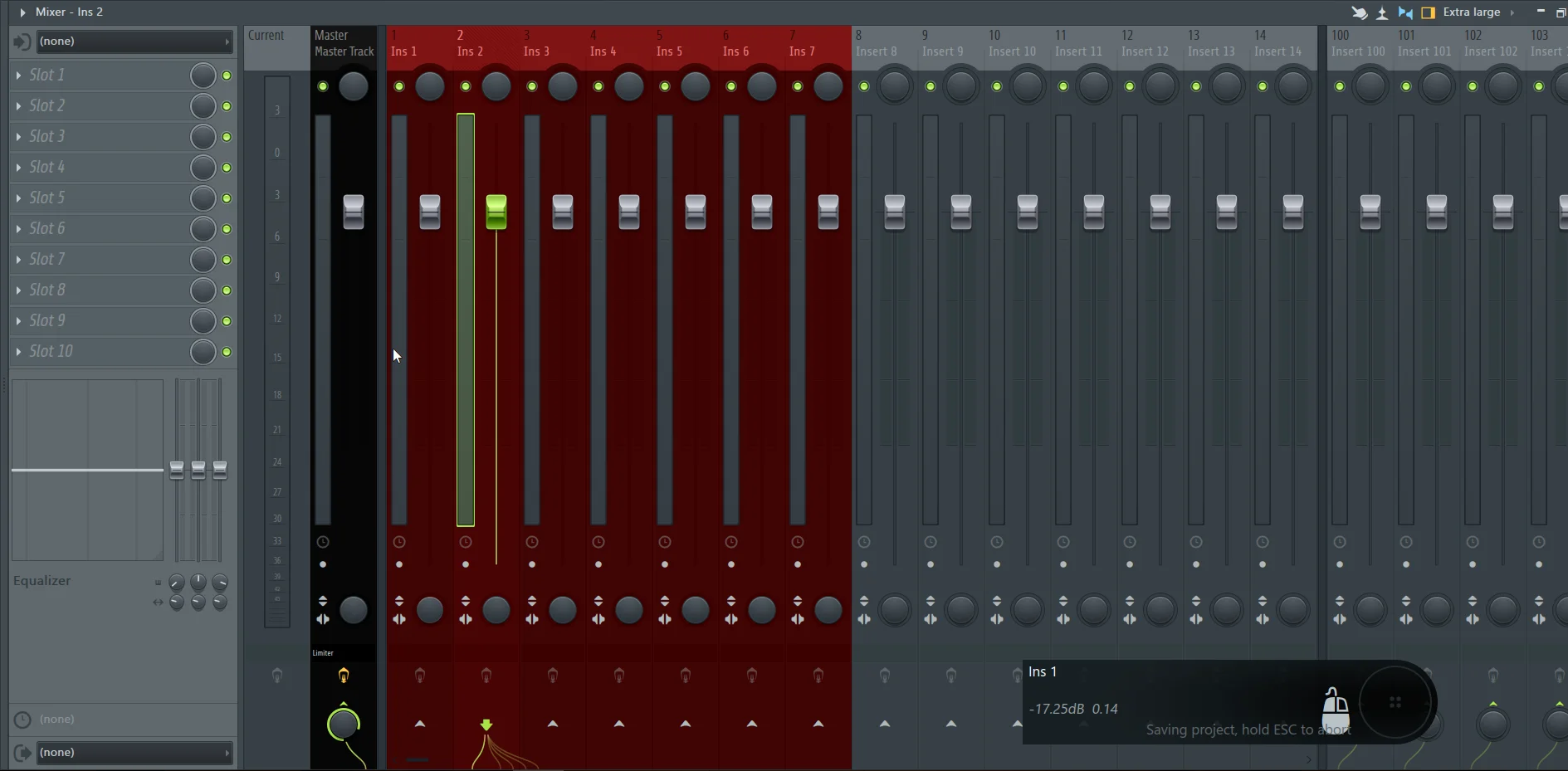
Click on an empty FL Studio mixer track and rename it whichever way you like.
However, ensure that you use a unique mixer track color that's distinct from your other mixer tracks.
Another thing worth mentioning is that your bus mixer track shouldn't be assigned to any FL Studio channel rack instrument or already be being utilized for whatever purpose.
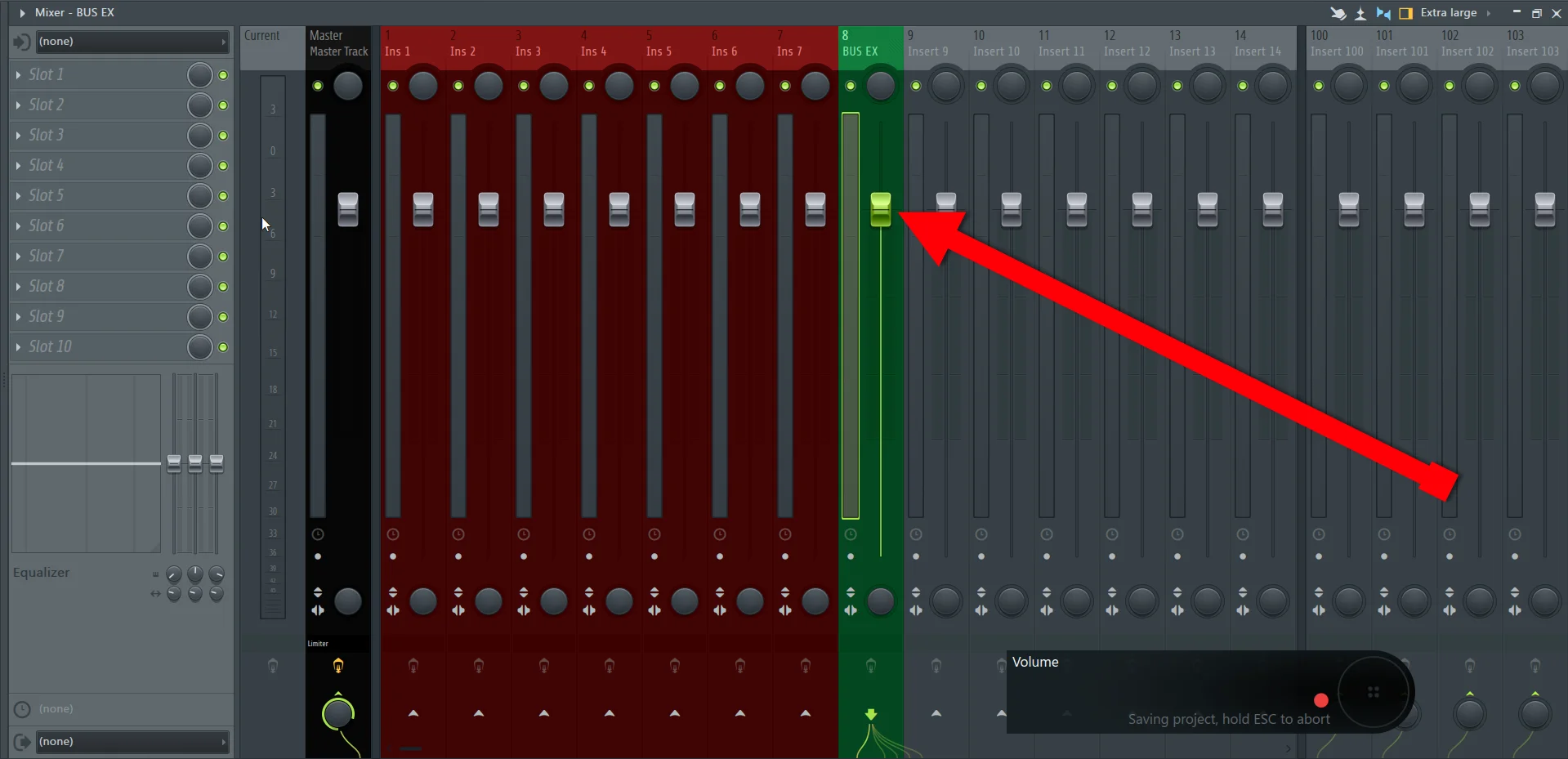
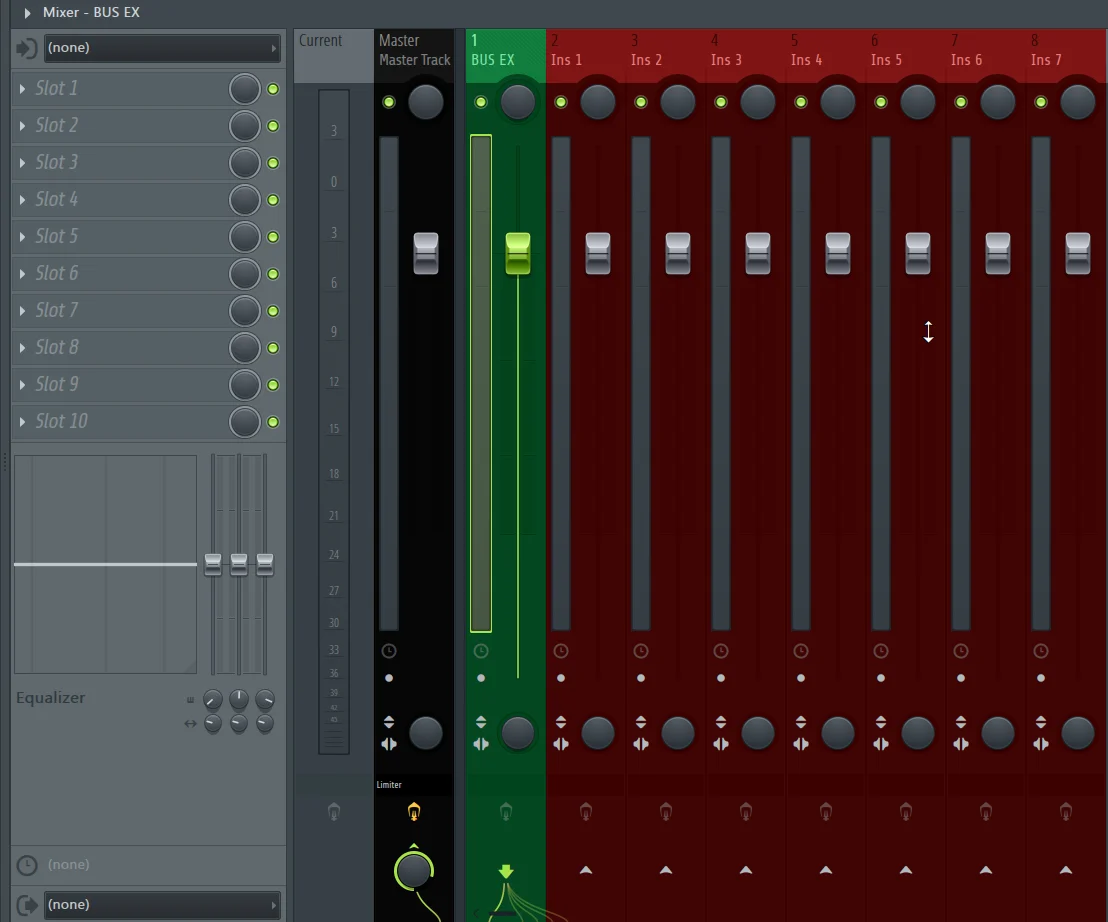
Step 2: Move the mixer track that you have selected to act as a bus or group channel right in front of the tracks that you want it to control.
Step 3: Route the output of the first mixer channel you want to the group channel you have just created.

Step 4: After you have routed the first mixer track you want to be part of the bus or group channel, it will look like this...
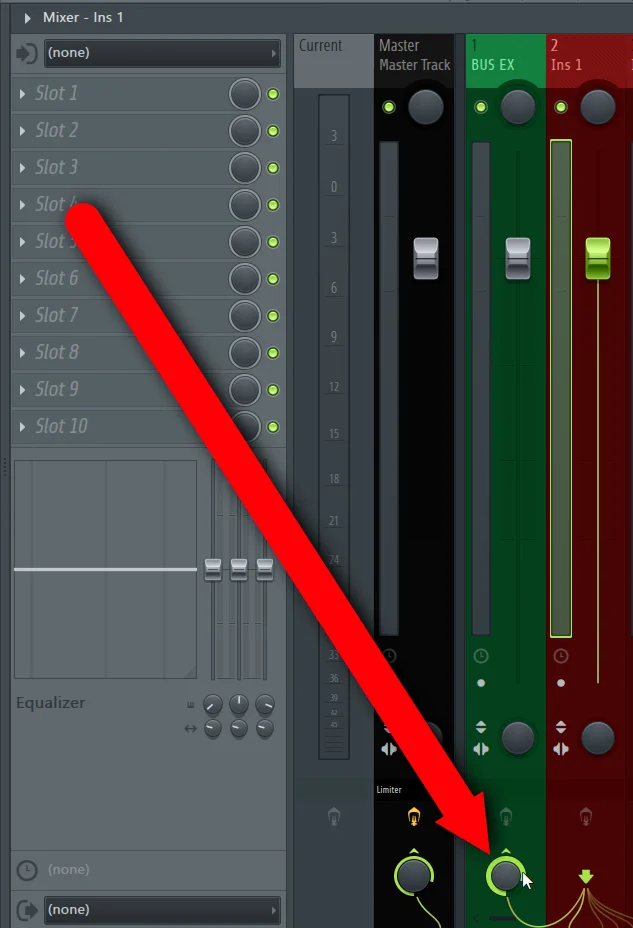
Step 5: Remove the other output routing to the master channel; this way, your audio routing will go from the Mixer channel to the Bus or Group Channel, then to the Master Channel.

Conclusion
Repeat the same process for the rest of the FL Studio mixer channels that you want to route to a bus or group channel.
Step 1: Let's rename and color-code FL Studio's mixer tracks that we wish to send to a bus or a group channel.
Click on an empty FL Studio mixer track and rename it whichever way you like.
However, ensure that you use a unique mixer track color that's distinct from your other mixer tracks.
Another thing worth mentioning is that your bus mixer track shouldn't be assigned to any FL Studio channel rack instrument or already be being utilized for whatever purpose.
Step 2: Move the mixer track that you have selected to act as a bus or group channel right in front of the tracks that you want it to control.
Step 3: Route the output of the first mixer channel you want to the group channel you have just created.
Step 4: After you have routed the first mixer track you want to be part of the bus or group channel, it will look like this...
Step 5: Remove the other output routing to the master channel; this way, your audio routing will go from the Mixer channel to the Bus or Group Channel, then to the Master Channel.
Conclusion
Repeat the same process for the rest of the FL Studio mixer channels that you want to route to a bus or group channel.


