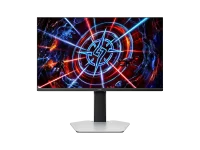
A 25-inch 2560 × 1440 panel works out to about 117.5 pixels per inch, noticeably denser than conventional 24.5-inch 1080p esports screens. You get the same 3.69 million pixels as a 27-inch QHD monitor, only packed into a smaller physical area.
For comparison, 27-inch 1440p lands around 108.8 PPI, while 24.5-inch 1080p sits near 89.9 PPI. The 25-inch QHD format is about 8 percent denser than 27-inch QHD and roughly 31 percent denser than 24.5-inch Full HD. Pretty dense for a screen this small.
Higher density changes more than game detail. The TCL 25P2A Pro’s 25-inch QHD panel has a pixel pitch of about 0.216mm, so desktop text, thin interface lines, and small icons are physically finer than on the usual 27-inch 1440p layout.
The math is boring but useful. A 16-pixel logical element occupies about 4.23mm on a 96 PPI display but only around 3.46mm on this panel, so something drawn at the same pixel dimensions shrinks by roughly 18 percent in physical size.
A 27-inch QHD panel has a pixel pitch of about 0.233mm, while a 24.5-inch 1080p panel sits near 0.282mm. Packing QHD into 25 inches cuts the pitch to about 0.216mm without adding any pixels beyond the standard 2560 × 1440 grid.
Windows offers 125 percent scaling as one of its standard scale factors. At 125 percent, the desktop behaves roughly like a 2048 × 1152 logical workspace, while the LCD still operates at its native 2560 × 1440 resolution. No panel resolution change is happening.
Physical sizing also moves back toward the old 96 PPI reference. An interface element that uses 20 physical pixels after 125 percent scaling occupies about 4.32mm on a 117.5 PPI panel, almost the same physical size as 16 pixels on a 96 PPI screen.
The paper is not evidence that 117.5 PPI will improve your aim. It supports a narrower point that pixel structure can influence how finely detailed shapes are represented, especially when their features approach the size of individual pixels.
Refresh rate does not replace this spatial detail. A 360Hz panel can update the picture every 2.78 milliseconds, but a static letter, HUD marker, or distant edge still has the same 2560 × 1440 pixel grid whether the monitor runs at 60Hz or 360Hz. Different problem entirely.
Screen size does not change the game’s rendered pixel count either. At the same 1440p resolution and field-of-view settings, a 25-inch and 27-inch monitor receive the same image dimensions, while the 25-inch model simply places those pixels closer together physically.
Moving to 125 percent scaling trades some logical workspace for larger interface elements. The effective desktop area becomes roughly 2048 × 1152, yet DPI-aware applications can still render text and controls using the panel’s native pixels. You give up room, not panel pixels.
A 150 percent setting pushes the logical workspace to roughly 1707 × 960. Interface elements become considerably larger, which may suit a farther viewing position or simply someone who dislikes tiny desktop text. It is a pretty aggressive setting on a 25-inch 1440p screen.
Games complicate the picture because Windows desktop scaling and game rendering scale are separate controls. Many games render at the resolution selected inside the game and provide their own HUD or interface scaling, so changing Windows from 100 to 125 percent does not automatically mean the game itself drops from native 1440p.
On the desktop, the distinction is cleaner. At 100 percent, the 25-inch panel turns its 117.5 PPI density into extra usable workspace and smaller physical UI. At 125 percent, more physical pixels are spent drawing similarly sized text and controls, keeping the fine sampling while making the interface less cramped.
For comparison, 27-inch 1440p lands around 108.8 PPI, while 24.5-inch 1080p sits near 89.9 PPI. The 25-inch QHD format is about 8 percent denser than 27-inch QHD and roughly 31 percent denser than 24.5-inch Full HD. Pretty dense for a screen this small.
Higher density changes more than game detail. The TCL 25P2A Pro’s 25-inch QHD panel has a pixel pitch of about 0.216mm, so desktop text, thin interface lines, and small icons are physically finer than on the usual 27-inch 1440p layout.
The extra density makes native scaling feel smaller
Windows historically treats 96 pixels per logical inch as the 100 percent baseline. Put 117.5 physical pixels into an inch while leaving scaling at 100 percent, and the same interface elements occupy less physical space. Menus and text really do get smaller.The math is boring but useful. A 16-pixel logical element occupies about 4.23mm on a 96 PPI display but only around 3.46mm on this panel, so something drawn at the same pixel dimensions shrinks by roughly 18 percent in physical size.
A 27-inch QHD panel has a pixel pitch of about 0.233mm, while a 24.5-inch 1080p panel sits near 0.282mm. Packing QHD into 25 inches cuts the pitch to about 0.216mm without adding any pixels beyond the standard 2560 × 1440 grid.
Windows offers 125 percent scaling as one of its standard scale factors. At 125 percent, the desktop behaves roughly like a 2048 × 1152 logical workspace, while the LCD still operates at its native 2560 × 1440 resolution. No panel resolution change is happening.
Physical sizing also moves back toward the old 96 PPI reference. An interface element that uses 20 physical pixels after 125 percent scaling occupies about 4.32mm on a 117.5 PPI panel, almost the same physical size as 16 pixels on a 96 PPI screen.
Fine detail benefits before a game even opens
Smaller pixels can make diagonal strokes, font edges, icons, and other high-contrast details look cleaner when software renders them properly. Computer monitor pixelation and Sloan letter visual acuity measurement measured how monitor pixel size and rendering method affected acuity-chart results, showing why display sampling can matter when an image contains very fine edges.The paper is not evidence that 117.5 PPI will improve your aim. It supports a narrower point that pixel structure can influence how finely detailed shapes are represented, especially when their features approach the size of individual pixels.
Refresh rate does not replace this spatial detail. A 360Hz panel can update the picture every 2.78 milliseconds, but a static letter, HUD marker, or distant edge still has the same 2560 × 1440 pixel grid whether the monitor runs at 60Hz or 360Hz. Different problem entirely.
Screen size does not change the game’s rendered pixel count either. At the same 1440p resolution and field-of-view settings, a 25-inch and 27-inch monitor receive the same image dimensions, while the 25-inch model simply places those pixels closer together physically.
Scaling decides whether density becomes space or clarity
Running Windows at 100 percent keeps the full 2560 × 1440 logical desktop available. More windows and interface content fit on screen, but their physical size is smaller than on the familiar 27-inch QHD setup because the panel packs the pixels more tightly.Moving to 125 percent scaling trades some logical workspace for larger interface elements. The effective desktop area becomes roughly 2048 × 1152, yet DPI-aware applications can still render text and controls using the panel’s native pixels. You give up room, not panel pixels.
A 150 percent setting pushes the logical workspace to roughly 1707 × 960. Interface elements become considerably larger, which may suit a farther viewing position or simply someone who dislikes tiny desktop text. It is a pretty aggressive setting on a 25-inch 1440p screen.
Games complicate the picture because Windows desktop scaling and game rendering scale are separate controls. Many games render at the resolution selected inside the game and provide their own HUD or interface scaling, so changing Windows from 100 to 125 percent does not automatically mean the game itself drops from native 1440p.
On the desktop, the distinction is cleaner. At 100 percent, the 25-inch panel turns its 117.5 PPI density into extra usable workspace and smaller physical UI. At 125 percent, more physical pixels are spent drawing similarly sized text and controls, keeping the fine sampling while making the interface less cramped.