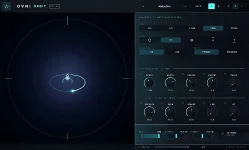
macOS 14.2 added Core Audio process taps, giving apps a native way to capture outgoing audio without installing a virtual audio device. For a music visualizer, that removes a surprisingly annoying bit of plumbing.
Older Mac setups often relied on BlackHole, Soundflower, or a paid loopback tool because the visualizer needed an input carrying whatever the computer was already playing. You would create a Multi-Output Device, send audio to both the virtual device and your speakers, then point the visualizer at the virtual input. It works, but one wrong device choice can leave you with silence, doubled routing, or disabled system volume controls.
SUPERNOVA takes the newer route in its standalone app. Supernova's standalone system-audio mode can listen to Spotify, YouTube, Serato, Ableton, or anything else reaching the Mac output without asking you to build a fake cable first.
The practical difference is pretty big. Your normal headphones or speakers stay selected as the output, keyboard volume control stays where you expect it, and Audio MIDI Setup does not need a homemade Multi-Output Device sitting around after the session. Open SUPERNOVA, choose System Audio, grant the requested permission, and the input meter should start following whatever the Mac is playing.
macOS 13 through 14.1 need a different path because Core Audio taps were not available there. SUPERNOVA falls back to ScreenCaptureKit, which is why those systems show the older Screen Recording permission even when the app only wants audio. On 14.2 and newer, the grant appears under System Audio Recording instead.
The app itself supports macOS 11 and newer, but driver-free system capture starts at macOS 13. Machines on 11 or 12 can still run SUPERNOVA with a microphone or audio-interface input. They just cannot use the direct whole-Mac source.
This avoids the classic loopback headache where the monitoring path accidentally gets duplicated. There is no second audible copy to line up, no feedback path to mute, and no need to monitor BlackHole through another application just to hear the track you were already hearing.
The same distinction separates the standalone app from the VST3 or AU version. Inside a DAW, the plugin listens only to audio passing through the track or bus where you inserted it. The standalone app can instead watch the Mac's complete output mix, which is the useful mode for browser playback, DJ software, listening parties, and quick visual sessions outside a project.
Fast visual response still matters because people notice when sound and image stop agreeing in time. Audio-visual simultaneity has measurable perception limits, so skipping extra routing stages is useful beyond convenience. Fewer moving parts also means fewer places for buffering, monitoring, or device configuration to go sideways.
Streaming has a similarly clean route. SUPERNOVA can publish its finished frame over Syphon directly to OBS, Resolume, or VDMX on macOS, so you do not need to screen-capture the visualizer window. Audio capture and video handoff stay separate, which is much easier to reason about during a live set.
Recorded clips use the same audio source that drives the visuals. The app can export H.264 video with an AAC audio track, keeping the picture tied to the analysed signal instead of making you line up a silent visual render later. Exports longer than 30 seconds repeat the captured 30-second window, so it is worth knowing the limit before treating the feature like a full concert recorder.
The main trap is old advice. Plenty of Mac visualizer guides still say system audio always requires BlackHole because that was true for their capture method or the macOS version they targeted. On a current Mac, the better first question is whether the visualizer supports native system taps. If it does, installing another audio driver may solve a problem you no longer have.
Older Mac setups often relied on BlackHole, Soundflower, or a paid loopback tool because the visualizer needed an input carrying whatever the computer was already playing. You would create a Multi-Output Device, send audio to both the virtual device and your speakers, then point the visualizer at the virtual input. It works, but one wrong device choice can leave you with silence, doubled routing, or disabled system volume controls.
SUPERNOVA takes the newer route in its standalone app. Supernova's standalone system-audio mode can listen to Spotify, YouTube, Serato, Ableton, or anything else reaching the Mac output without asking you to build a fake cable first.
Native system taps remove the virtual-cable mess
On macOS 14.2 and later, SUPERNOVA uses Core Audio process taps to read the outgoing mix. Apple exposes those taps as audio sources inside Core Audio, so an app can analyse system playback without pretending to be another hardware device.The practical difference is pretty big. Your normal headphones or speakers stay selected as the output, keyboard volume control stays where you expect it, and Audio MIDI Setup does not need a homemade Multi-Output Device sitting around after the session. Open SUPERNOVA, choose System Audio, grant the requested permission, and the input meter should start following whatever the Mac is playing.
macOS 13 through 14.1 need a different path because Core Audio taps were not available there. SUPERNOVA falls back to ScreenCaptureKit, which is why those systems show the older Screen Recording permission even when the app only wants audio. On 14.2 and newer, the grant appears under System Audio Recording instead.
The app itself supports macOS 11 and newer, but driver-free system capture starts at macOS 13. Machines on 11 or 12 can still run SUPERNOVA with a microphone or audio-interface input. They just cannot use the direct whole-Mac source.
Supernova listens without replaying the audio
System capture does not mean SUPERNOVA becomes another audio output. The standalone app analyses the captured stream and drives its particle engine, but it does not play the stream back. Your music continues through the output device that was already handling it.This avoids the classic loopback headache where the monitoring path accidentally gets duplicated. There is no second audible copy to line up, no feedback path to mute, and no need to monitor BlackHole through another application just to hear the track you were already hearing.
The same distinction separates the standalone app from the VST3 or AU version. Inside a DAW, the plugin listens only to audio passing through the track or bus where you inserted it. The standalone app can instead watch the Mac's complete output mix, which is the useful mode for browser playback, DJ software, listening parties, and quick visual sessions outside a project.
Fast visual response still matters because people notice when sound and image stop agreeing in time. Audio-visual simultaneity has measurable perception limits, so skipping extra routing stages is useful beyond convenience. Fewer moving parts also means fewer places for buffering, monitoring, or device configuration to go sideways.
Direct capture still has a few practical edges
Changing headphones or switching the output device used to be the kind of thing that could quietly kill a loopback setup. SUPERNOVA's current standalone build watches for output-device and sample-rate changes, then rebuilds its capture on the new output in roughly a second. The existing permission remains in place.Streaming has a similarly clean route. SUPERNOVA can publish its finished frame over Syphon directly to OBS, Resolume, or VDMX on macOS, so you do not need to screen-capture the visualizer window. Audio capture and video handoff stay separate, which is much easier to reason about during a live set.
Recorded clips use the same audio source that drives the visuals. The app can export H.264 video with an AAC audio track, keeping the picture tied to the analysed signal instead of making you line up a silent visual render later. Exports longer than 30 seconds repeat the captured 30-second window, so it is worth knowing the limit before treating the feature like a full concert recorder.
The main trap is old advice. Plenty of Mac visualizer guides still say system audio always requires BlackHole because that was true for their capture method or the macOS version they targeted. On a current Mac, the better first question is whether the visualizer supports native system taps. If it does, installing another audio driver may solve a problem you no longer have.