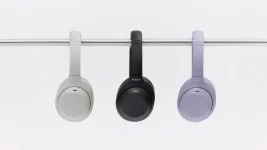
Sony requires a compatible Android phone and a Sound Connect setting change before the WH-CH530 or WH-CH730N will use LE Audio. Pairing them normally is only the starting point. Out of the box, both headphones can still run through conventional Bluetooth audio with SBC or AAC.
The newer connection mode matters because Sony uses LC3 for LE Audio and positions it as the lower-latency option. Inside Sony’s latest affordable wireless headphone lineup, both models support the feature, but the setup is more deliberate than simply finding the headphones in your Bluetooth menu. Your phone has to support the same stack.
The awkward bit comes next. Sony tells you to delete the existing pairing information from the Android phone, put the headphones back into pairing mode, and pair them again. Once reconnected, the phone’s Bluetooth settings should show LE Audio enabled, while Sound Connect should display LE Audio under the headphone name.
This extra pairing cycle is easy to mistake for a failed setup because the headphones already worked before you deleted them. Nothing is wrong simply because Sony asks for a second pairing. The first connection gets Sound Connect talking to the headset, while the later connection establishes the LE Audio path.
LC3 is the codec used once that path is active. Its design targets low delay and lower computational demands, points detailed in the AES paper on LC3 and LC3plus, but the codec is only one part of the chain. A phone without compatible LE Audio support cannot be fixed by changing a codec menu on the headphones.
A Bluetooth 6.0 badge on either end is not enough by itself. LE Audio, LC3, and Auracast are related capabilities, but they are not interchangeable labels for the same feature. The phone still needs the appropriate implementation, and software support can vary by manufacturer and operating-system version.
This distinction is useful when nothing resembling an Auracast option appears on your phone. Re-pairing the headphones repeatedly will not create a broadcast feature the source device lacks. Checking the source device’s own support documentation is more useful than resetting a working headset.
The WH-CH530 should also be treated carefully here. Sony clearly documents its LC3 and LE Audio connection mode, while current public help material is much less explicit about an Auracast workflow for this model than it is for the WH-CH730N. LE Audio support alone should not be used as proof that every LE Audio feature is exposed identically across both headphones.
Some functions can disappear while LE Audio is in use. Sony warns about this directly in the setup documentation, so a missing app control after switching modes is not automatically a firmware bug. Classic Audio remains the safer fallback when a feature you rely on stops appearing.
Pairing lists can add another wrinkle. On the WH-CH730N, a device may show WH-CH730N series, LE_WH-CH730N series, or both during connection attempts, and Sony tells users to select the regular WH-CH730N series entry when both appear. Picking entries at random can turn a simple reconnection into a loop of deleted pairings and retries.
Firmware is worth checking before more aggressive troubleshooting. Sony distributes headset updates through Sound Connect and recommends keeping other Bluetooth devices away from the update process when problems occur, including disconnecting nearby Bluetooth Low Energy accessories if an update refuses to complete. A failed update can look like a connection problem when the radio itself is fine.
If LE Audio still refuses to appear after a clean re-pair, the useful checks are the phone’s LE Audio support, the selected Sound Connect connection mode, the headset firmware, and whether LE Audio is enabled for the device inside Android Bluetooth settings. Resetting or initializing the headphones belongs later in the troubleshooting sequence because it wipes useful state without adding a missing phone capability.
The newer connection mode matters because Sony uses LC3 for LE Audio and positions it as the lower-latency option. Inside Sony’s latest affordable wireless headphone lineup, both models support the feature, but the setup is more deliberate than simply finding the headphones in your Bluetooth menu. Your phone has to support the same stack.
LE Audio changes how these headphones pair
Start with an ordinary Bluetooth connection and open Sony Sound Connect. On current versions of the app, Sony directs you toward Low latency under Bluetooth Connection Quality, or LE Audio Priority under Headphone connection settings when Low latency is not shown. Choosing it changes the type of connection the headphones expect.The awkward bit comes next. Sony tells you to delete the existing pairing information from the Android phone, put the headphones back into pairing mode, and pair them again. Once reconnected, the phone’s Bluetooth settings should show LE Audio enabled, while Sound Connect should display LE Audio under the headphone name.
This extra pairing cycle is easy to mistake for a failed setup because the headphones already worked before you deleted them. Nothing is wrong simply because Sony asks for a second pairing. The first connection gets Sound Connect talking to the headset, while the later connection establishes the LE Audio path.
LC3 is the codec used once that path is active. Its design targets low delay and lower computational demands, points detailed in the AES paper on LC3 and LC3plus, but the codec is only one part of the chain. A phone without compatible LE Audio support cannot be fixed by changing a codec menu on the headphones.
Auracast depends on the device sending the broadcast
Auracast sits on top of LE Audio and changes the connection idea again. Instead of pairing one source privately to one headset in the usual way, a compatible source can broadcast audio that supported receivers can join. Sony documents Auracast support for the WH-CH730N, but the transmitting phone or other source also has to support Auracast broadcast audio.A Bluetooth 6.0 badge on either end is not enough by itself. LE Audio, LC3, and Auracast are related capabilities, but they are not interchangeable labels for the same feature. The phone still needs the appropriate implementation, and software support can vary by manufacturer and operating-system version.
This distinction is useful when nothing resembling an Auracast option appears on your phone. Re-pairing the headphones repeatedly will not create a broadcast feature the source device lacks. Checking the source device’s own support documentation is more useful than resetting a working headset.
The WH-CH530 should also be treated carefully here. Sony clearly documents its LC3 and LE Audio connection mode, while current public help material is much less explicit about an Auracast workflow for this model than it is for the WH-CH730N. LE Audio support alone should not be used as proof that every LE Audio feature is exposed identically across both headphones.
Connection problems often come from the selected mode
Sound stutter is one of the easier problems to diagnose. Sony recommends switching to Prioritize Stable Connection when ordinary Bluetooth playback becomes unreliable, while LE Audio uses the Low latency setting. Moving away from Low latency also returns the headphones toward Classic Audio rather than leaving LC3 permanently active.Some functions can disappear while LE Audio is in use. Sony warns about this directly in the setup documentation, so a missing app control after switching modes is not automatically a firmware bug. Classic Audio remains the safer fallback when a feature you rely on stops appearing.
Pairing lists can add another wrinkle. On the WH-CH730N, a device may show WH-CH730N series, LE_WH-CH730N series, or both during connection attempts, and Sony tells users to select the regular WH-CH730N series entry when both appear. Picking entries at random can turn a simple reconnection into a loop of deleted pairings and retries.
Firmware is worth checking before more aggressive troubleshooting. Sony distributes headset updates through Sound Connect and recommends keeping other Bluetooth devices away from the update process when problems occur, including disconnecting nearby Bluetooth Low Energy accessories if an update refuses to complete. A failed update can look like a connection problem when the radio itself is fine.
If LE Audio still refuses to appear after a clean re-pair, the useful checks are the phone’s LE Audio support, the selected Sound Connect connection mode, the headset firmware, and whether LE Audio is enabled for the device inside Android Bluetooth settings. Resetting or initializing the headphones belongs later in the troubleshooting sequence because it wipes useful state without adding a missing phone capability.