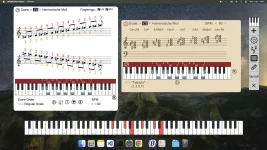
MidiStickers has a built-in synthesizer, but receiving MIDI notes and playing them aloud are controlled through separate settings. You can press a key, see the correct note appear, and hear absolutely nothing. The display can still be working properly.
For MidiStickers’ interactive keyboard exercises, decide which application will produce the sound before changing your connections. Otherwise, you can spend an afternoon adjusting the controller while the software responsible for making it audible remains switched off.
Keep the instrument display visible during the test so you can compare each key press with its response. If those notes appear immediately, you've established that input is reaching the app. Investigate the sound settings before replacing a cable that is already carrying your performance.
You can also check playback without the physical controller. Add the Virtual Piano widget, double-click to activate it, and use the mapped computer keys to play one note. Press Escape when you've finished so the keyboard leaves its note-entry mode.
A successful Virtual Piano test confirms that the software can produce sound from internally generated notes. If the computer keys make sound and your controller doesn't, check the controller's input selection while leaving the instrument and volume unchanged.
If neither input produces sound, check the computer's audio output and volume as well as MidiStickers' own controls. Headphones connected to the keyboard won't necessarily carry audio generated on the computer, so listen through the output you've actually selected.
On Windows, the documented setup uses loopMIDI to create a virtual port before MidiStickers starts. Keep loopMIDI running while you practice, because its ports exist only while the application is active. Closing its configuration window merely minimizes it to the system tray.
Quitting loopMIDI is different. Its ports disappear, leaving the receiving instrument without that connection even if the hardware keyboard still drives MidiStickers' display. When a connected keyboard stays silent, check whether the virtual connection exists before rebuilding your instrument track.
In MidiStickers, keep the hardware controller enabled as an input, then enable Send MIDI IN to MIDI Out and select your virtual port. In the receiving application, choose that port as the MIDI input for a loaded instrument, with its audio output set to your speakers or headphones.
Leave this outgoing virtual port disabled in MidiStickers' input list. Otherwise, forwarded notes can return to the application that sent them and be forwarded again, creating MIDI feedback. Enabling every available input makes this setup harder to diagnose.
On a Mac, the IAC Driver provides the connection between applications. Open Audio MIDI Setup, choose Show MIDI Studio from the Window menu, then open IAC Driver and enable Device is online. Set up a bus for the two applications to share.
Use the IAC bus as MidiStickers' output and the receiving instrument's input, keeping that bus disabled as an input in MidiStickers. Once the external instrument plays reliably, turn off Play MIDI Input if you want to hear only that instrument.
The Windows version currently lacks ASIO support for its internal sound engine. If its response remains uncomfortable, you can forward MIDI to a DAW or plugin host configured for lower audio latency. Adjust the audio settings in whichever application is actually producing the sound.
Keep only one sound source audible while judging the result, since hearing both applications makes the delay harder to assess. Play a short passage, change one setting, and repeat the same passage rather than switching sounds and settings at the same time.
MidiStickers requires a restart after you connect or disconnect MIDI devices so it can detect and configure them properly. After adding a controller or virtual port, establish the connection before reopening MidiStickers, then check its input selection.
For MidiStickers’ interactive keyboard exercises, decide which application will produce the sound before changing your connections. Otherwise, you can spend an afternoon adjusting the controller while the software responsible for making it audible remains switched off.
The internal synthesizer has its own switch
Open the Settings Window from the toolbar and go to Audio/MIDI. Play MIDI Input controls whether incoming notes sound through the internal synthesizer, while Volume controls how loudly it plays. Enable playback and choose a modest volume before testing a few notes.Keep the instrument display visible during the test so you can compare each key press with its response. If those notes appear immediately, you've established that input is reaching the app. Investigate the sound settings before replacing a cable that is already carrying your performance.
You can also check playback without the physical controller. Add the Virtual Piano widget, double-click to activate it, and use the mapped computer keys to play one note. Press Escape when you've finished so the keyboard leaves its note-entry mode.
A successful Virtual Piano test confirms that the software can produce sound from internally generated notes. If the computer keys make sound and your controller doesn't, check the controller's input selection while leaving the instrument and volume unchanged.
If neither input produces sound, check the computer's audio output and volume as well as MidiStickers' own controls. Headphones connected to the keyboard won't necessarily carry audio generated on the computer, so listen through the output you've actually selected.
External instruments need a complete MIDI route
Perhaps you already have a piano sound you prefer in a digital audio workstation, or DAW. MidiStickers can forward your performance to another application, letting you keep its notation visible while using an external instrument for sound.On Windows, the documented setup uses loopMIDI to create a virtual port before MidiStickers starts. Keep loopMIDI running while you practice, because its ports exist only while the application is active. Closing its configuration window merely minimizes it to the system tray.
Quitting loopMIDI is different. Its ports disappear, leaving the receiving instrument without that connection even if the hardware keyboard still drives MidiStickers' display. When a connected keyboard stays silent, check whether the virtual connection exists before rebuilding your instrument track.
In MidiStickers, keep the hardware controller enabled as an input, then enable Send MIDI IN to MIDI Out and select your virtual port. In the receiving application, choose that port as the MIDI input for a loaded instrument, with its audio output set to your speakers or headphones.
Leave this outgoing virtual port disabled in MidiStickers' input list. Otherwise, forwarded notes can return to the application that sent them and be forwarded again, creating MIDI feedback. Enabling every available input makes this setup harder to diagnose.
On a Mac, the IAC Driver provides the connection between applications. Open Audio MIDI Setup, choose Show MIDI Studio from the Window menu, then open IAC Driver and enable Device is online. Set up a bus for the two applications to share.
Use the IAC bus as MidiStickers' output and the receiving instrument's input, keeping that bus disabled as an input in MidiStickers. Once the external instrument plays reliably, turn off Play MIDI Input if you want to hear only that instrument.
Delayed sound needs a different adjustment
Once notes become audible, listen for a gap between pressing the key and hearing the attack. MidiStickers' Latency control adjusts its internal synthesizer, so changing it won't fix delay inside a separate instrument host.The Windows version currently lacks ASIO support for its internal sound engine. If its response remains uncomfortable, you can forward MIDI to a DAW or plugin host configured for lower audio latency. Adjust the audio settings in whichever application is actually producing the sound.
Keep only one sound source audible while judging the result, since hearing both applications makes the delay harder to assess. Play a short passage, change one setting, and repeat the same passage rather than switching sounds and settings at the same time.
MidiStickers requires a restart after you connect or disconnect MIDI devices so it can detect and configure them properly. After adding a controller or virtual port, establish the connection before reopening MidiStickers, then check its input selection.