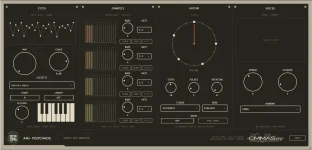
Ableton Live can receive MIDI generated by a VST plug-in on a second MIDI track and pass it into another instrument. AMI-Polychaos fits this workflow because it generates notes rather than audio, so the clean setup separates note generation from the synth or sampler you actually hear.
Start with one MIDI track for AMI-Polychaos and a second for the instrument. Load the VST3 build of the AMI-Polychaos generative MIDI plug-in on the first track, then place your chosen instrument on the second. The first track becomes the generator and the second becomes the sound source.
On macOS, the plug-in format matters here. Live supports Audio Units, but AU plug-ins do not provide direct MIDI output to another Live track, while VST and VST3 plug-ins can. Using VST3 avoids a dead end where the plug-in opens normally but never appears as a usable MIDI source for the receiving track.
Set the receiving track's monitor to In for a straightforward live setup. Live then passes the chosen MIDI source through continuously, so the instrument responds without needing the track armed. Auto also works when the receiving track is armed, but its behavior changes with the record state and can make troubleshooting less obvious.
The source track still needs something to trigger the generator. AMI-Polychaos runs from a sustained MIDI note or chord while the transport is moving, so feed your keyboard or a MIDI clip into the source track and make sure monitoring allows the input through. If the receiving synth stays silent, check the source input first, then confirm the lower MIDI From chooser still names the plug-in.
A plain two-track Set is the best diagnostic setup. Remove extra MIDI devices, leave one instrument on the receiving track, start Live's transport, hold a note, and watch the receiving track's MIDI activity. Once notes are reaching the instrument, add other processors one at a time instead of debugging several moving parts together.
Earlier work behind the AMI family used algorithmically generated symbolic musical material in Max for Live, as described in published AMI composition research. Ableton still treats the plug-in output as ordinary MIDI once it reaches the receiving track, so you can send the generated material into very different instruments without changing the generator.
In Session View, record a clip on the receiving MIDI track while the generator runs. In Arrangement View, arm the receiving track and use Live's main recording controls. With Auto monitoring selected, arming the track also enables play-through from the chosen input, while In keeps monitoring active regardless of whether the track is armed.
The recorded clip becomes normal MIDI, which makes generative material easier to arrange. You can shorten notes, move pitches, delete crowded moments, duplicate a useful bar, or send a copied clip to another instrument. Printing a good pass also removes the need to recreate the exact performance later when you only want the musical result.
Keep an eye on Live's internal MIDI channel behavior if you plan to split generated material across several destinations. Live merges MIDI channels when routing internally from one track to another, so channel numbers are not a reliable way to peel several voices off the same routed stream into independent tracks. Build separate routing paths when you genuinely need independent destinations.
Mac users should also confirm they loaded VST3 rather than AU when direct MIDI output is the goal. Both formats may appear in Live, and both can open successfully, but their MIDI-output capabilities are not equivalent. A healthy-looking AU instance can waste time if you expect another track to receive notes from it.
Once the two-track route works, save it as a template or grouped track setup. AMI-Polychaos can then stay in its own generator lane while you swap instruments, record fresh passes, and edit the results without rebuilding the routing every time.
Start with one MIDI track for AMI-Polychaos and a second for the instrument. Load the VST3 build of the AMI-Polychaos generative MIDI plug-in on the first track, then place your chosen instrument on the second. The first track becomes the generator and the second becomes the sound source.
On macOS, the plug-in format matters here. Live supports Audio Units, but AU plug-ins do not provide direct MIDI output to another Live track, while VST and VST3 plug-ins can. Using VST3 avoids a dead end where the plug-in opens normally but never appears as a usable MIDI source for the receiving track.
The second track needs the plug-in as its MIDI source
Open Live's I/O controls on the receiving instrument track and set MIDI From to the track containing AMI-Polychaos. The lower input chooser is just as important. Select AMI-Polychaos itself rather than Pre FX or Post FX, because you want MIDI created by the plug-in, not merely the notes entering or leaving the surrounding track chain.Set the receiving track's monitor to In for a straightforward live setup. Live then passes the chosen MIDI source through continuously, so the instrument responds without needing the track armed. Auto also works when the receiving track is armed, but its behavior changes with the record state and can make troubleshooting less obvious.
The source track still needs something to trigger the generator. AMI-Polychaos runs from a sustained MIDI note or chord while the transport is moving, so feed your keyboard or a MIDI clip into the source track and make sure monitoring allows the input through. If the receiving synth stays silent, check the source input first, then confirm the lower MIDI From chooser still names the plug-in.
A plain two-track Set is the best diagnostic setup. Remove extra MIDI devices, leave one instrument on the receiving track, start Live's transport, hold a note, and watch the receiving track's MIDI activity. Once notes are reaching the instrument, add other processors one at a time instead of debugging several moving parts together.
Earlier work behind the AMI family used algorithmically generated symbolic musical material in Max for Live, as described in published AMI composition research. Ableton still treats the plug-in output as ordinary MIDI once it reaches the receiving track, so you can send the generated material into very different instruments without changing the generator.
Recording the generated MIDI needs the receiving track
Recording your keyboard on the AMI-Polychaos track does not automatically give you the four generated lines as editable notes. The original input and the plug-in's output are different stages of the chain. To capture what AMI-Polychaos produced, record on the MIDI track that receives the plug-in output.In Session View, record a clip on the receiving MIDI track while the generator runs. In Arrangement View, arm the receiving track and use Live's main recording controls. With Auto monitoring selected, arming the track also enables play-through from the chosen input, while In keeps monitoring active regardless of whether the track is armed.
The recorded clip becomes normal MIDI, which makes generative material easier to arrange. You can shorten notes, move pitches, delete crowded moments, duplicate a useful bar, or send a copied clip to another instrument. Printing a good pass also removes the need to recreate the exact performance later when you only want the musical result.
Keep an eye on Live's internal MIDI channel behavior if you plan to split generated material across several destinations. Live merges MIDI channels when routing internally from one track to another, so channel numbers are not a reliable way to peel several voices off the same routed stream into independent tracks. Build separate routing paths when you genuinely need independent destinations.
A silent instrument usually points to routing, not sound design
The fastest check is whether the receiving track shows incoming MIDI. If it does but you hear nothing, the instrument or its audio path deserves attention. If no MIDI arrives, return to MIDI From, verify the source track, and make sure the lower chooser names AMI-Polychaos rather than a generic pre-effect or post-effect tap.Mac users should also confirm they loaded VST3 rather than AU when direct MIDI output is the goal. Both formats may appear in Live, and both can open successfully, but their MIDI-output capabilities are not equivalent. A healthy-looking AU instance can waste time if you expect another track to receive notes from it.
Once the two-track route works, save it as a template or grouped track setup. AMI-Polychaos can then stay in its own generator lane while you swap instruments, record fresh passes, and edit the results without rebuilding the routing every time.