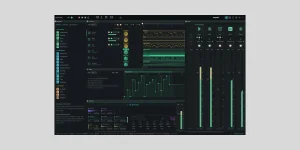
OpenDAW can record audio and MIDI from multiple devices at once, with track arming, input monitoring, loop takes, and count-in controls. Recording is no longer just a checkbox on the feature list.
The OpenDAW browser production tools include both audio and MIDI capture, but the useful bit is how those inputs can be separated before anything lands on the timeline. You can choose an audio input, record it in mono when appropriate, select specific MIDI devices, and arm more than one track for the same pass.
Audio and MIDI do not need the same setup. A microphone or interface depends on the browser seeing the correct audio input, while a hardware controller has its own Web MIDI permission and browser requirements. The MIDI keyboard setup in OpenDAW is worth checking first when notes never reach an armed track.
For audio tracks, pick the input you actually want before recording. Mono recording is available when a source is genuinely mono, such as a single microphone or instrument input, so you do not need to create a stereo recording with one useful side and one empty side.
Input monitoring lets you hear the incoming audio before and during capture. It is useful for checking level and routing, but monitoring through a browser still involves the complete local input and output path. Browser round-trip latency can shift recorded tracks because the delay comes from hardware, drivers, the operating system, browser processing, and audio buffering.
If monitoring feels late, internet speed is not the obvious culprit. OpenDAW processes the live audio locally, so changing Wi-Fi networks will not fix latency introduced between your interface, browser, and headphones. Direct monitoring on an audio interface can avoid that browser round trip when the hardware provides it, although you may not hear processing applied inside OpenDAW.
This works nicely for vocals, guitars, percussion, or any short phrase where several performances are faster than constantly rewinding. Separate tracks also make the results obvious. You are not digging through hidden layers just to find out whether the third pass was better than the first.
Count-in handles the other side of starting cleanly. OpenDAW can run the metronome before recording begins, giving you time to get your hands back on the instrument or settle on the first beat. If you already have enough lead-in and want recording to begin immediately, Shift plus Record suppresses the count-in for that pass.
Try the setup on a short loop before recording anything important. Enable takes, arm only the track you need, and record three passes. Stop and confirm that each iteration arrived separately before trusting the same setup with a longer performance. Small tests catch routing mistakes before they become ten minutes of beautifully recorded silence.
Step recording takes timing pressure out of the job. In the note editor, you can enter notes without performing the whole phrase in real time, which works well for dense chords, precise patterns, or parts that are easier to build one event at a time.
Do not troubleshoot MIDI recording by changing audio settings at random. If a controller plays nothing, confirm browser MIDI access, the selected device, channel filter, instrument, and track arm state first. Audio input selection will not rescue a MIDI routing problem.
Before a serious session, make one short audio recording and one short MIDI recording in the project you plan to use. Listen to the audio for monitoring delay or wrong-channel capture, then open the MIDI notes and confirm the intended device and channel were recorded. Fixing either problem before the full take is considerably less annoying than discovering it after the performance.
The OpenDAW browser production tools include both audio and MIDI capture, but the useful bit is how those inputs can be separated before anything lands on the timeline. You can choose an audio input, record it in mono when appropriate, select specific MIDI devices, and arm more than one track for the same pass.
Audio and MIDI do not need the same setup. A microphone or interface depends on the browser seeing the correct audio input, while a hardware controller has its own Web MIDI permission and browser requirements. The MIDI keyboard setup in OpenDAW is worth checking first when notes never reach an armed track.
Track arming stops inputs from piling onto one track
OpenDAW lets you arm one track normally or hold Shift while arming additional tracks. This is handy when you want a vocal microphone, another audio source, and a MIDI performance captured during the same run instead of recording each part separately.For audio tracks, pick the input you actually want before recording. Mono recording is available when a source is genuinely mono, such as a single microphone or instrument input, so you do not need to create a stereo recording with one useful side and one empty side.
Input monitoring lets you hear the incoming audio before and during capture. It is useful for checking level and routing, but monitoring through a browser still involves the complete local input and output path. Browser round-trip latency can shift recorded tracks because the delay comes from hardware, drivers, the operating system, browser processing, and audio buffering.
If monitoring feels late, internet speed is not the obvious culprit. OpenDAW processes the live audio locally, so changing Wi-Fi networks will not fix latency introduced between your interface, browser, and headphones. Direct monitoring on an audio interface can avoid that browser round trip when the hardware provides it, although you may not hear processing applied inside OpenDAW.
Loop recording keeps every take on its own track
Turn on loop mode with takes enabled and OpenDAW creates a new take on a separate track for each trip around the loop. You can keep performing without manually stopping after every attempt, then compare the resulting passes afterward.This works nicely for vocals, guitars, percussion, or any short phrase where several performances are faster than constantly rewinding. Separate tracks also make the results obvious. You are not digging through hidden layers just to find out whether the third pass was better than the first.
Count-in handles the other side of starting cleanly. OpenDAW can run the metronome before recording begins, giving you time to get your hands back on the instrument or settle on the first beat. If you already have enough lead-in and want recording to begin immediately, Shift plus Record suppresses the count-in for that pass.
Try the setup on a short loop before recording anything important. Enable takes, arm only the track you need, and record three passes. Stop and confirm that each iteration arrived separately before trusting the same setup with a longer performance. Small tests catch routing mistakes before they become ten minutes of beautifully recorded silence.
MIDI recording has real-time and step-by-step paths
Real-time MIDI capture follows the armed track and its selected device and channel settings. OpenDAW can listen to all connected controllers or narrow a track to one device and one MIDI channel, which is useful when keyboards, pads, or sequencers are all connected at once.Step recording takes timing pressure out of the job. In the note editor, you can enter notes without performing the whole phrase in real time, which works well for dense chords, precise patterns, or parts that are easier to build one event at a time.
Do not troubleshoot MIDI recording by changing audio settings at random. If a controller plays nothing, confirm browser MIDI access, the selected device, channel filter, instrument, and track arm state first. Audio input selection will not rescue a MIDI routing problem.
Before a serious session, make one short audio recording and one short MIDI recording in the project you plan to use. Listen to the audio for monitoring delay or wrong-channel capture, then open the MIDI notes and confirm the intended device and channel were recorded. Fixing either problem before the full take is considerably less annoying than discovering it after the performance.